Upload your roster. See what needs attention. Decide what to change.
RosterWise works from the roster you already make. You don’t need to change how you plan shifts.
1. Upload your roster
Drag and drop your roster to get started.
2. See what needs attention
Review the shifts highlighted in the calendar and why they have been flagged.
3. Decide what to change
Use the findings to review your roster and decide what to do next.
Upload your roster
Drag and drop your roster to get started. Save it as a CSV file first: Excel and most rostering tools can do this. RosterWise shows you a preview and asks about anything it can’t read before it checks a single shift.
Use staff numbers rather than names. Add a few weeks of earlier shifts too, so the first days of your roster can be checked properly.
See what needs attention
The calendar shows each person’s week. Shifts are marked OK, Watch or Review. Limited data means the roster doesn’t hold enough to check that shift, so it is never shown as OK.
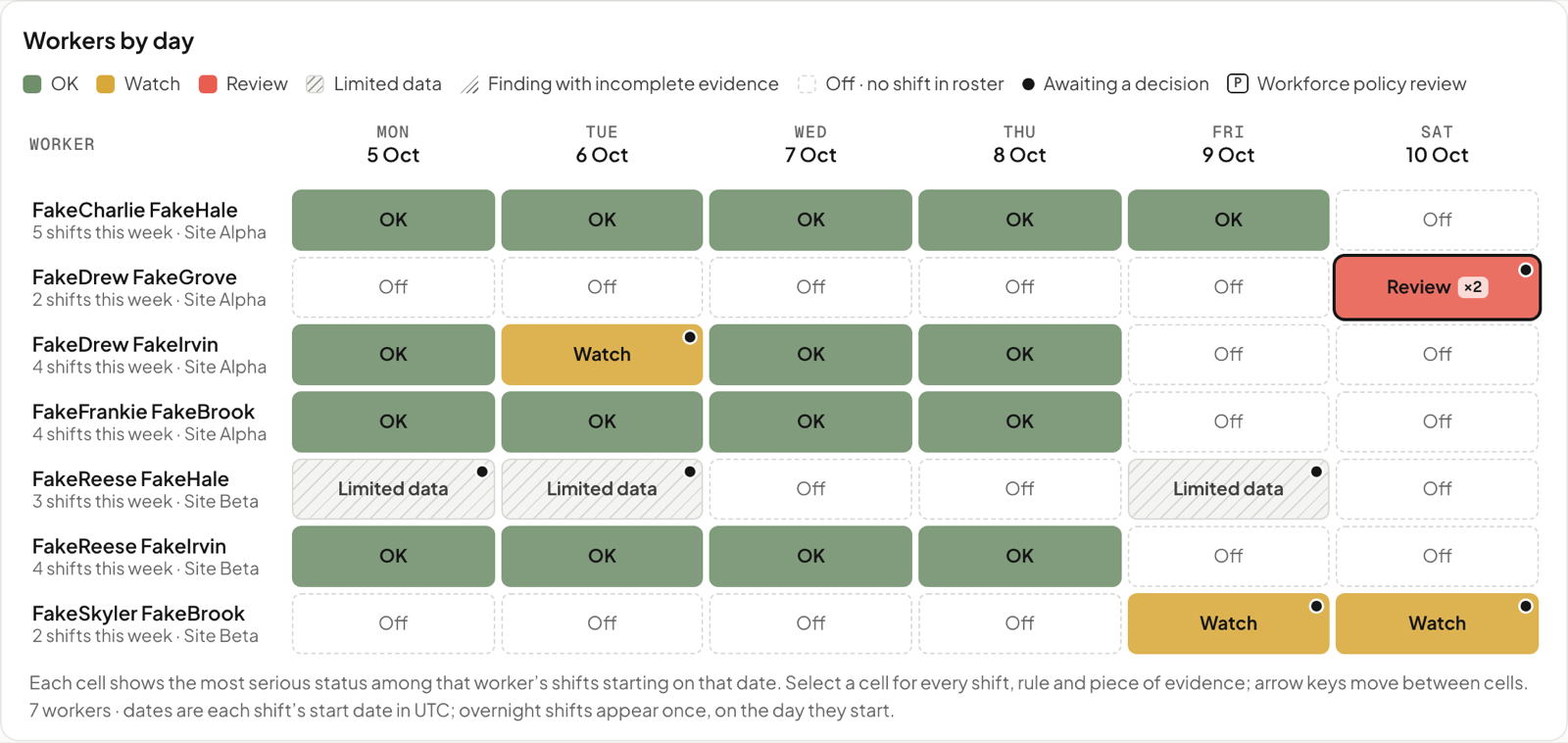
Why this shift was flagged.
Select a shift to see the reason. Here, a night shift starting at midnight follows a shift that ended nine hours earlier.
- Short rest: 9 hours since the last shift, under the 11-hour daily rest reference.
- Night work: the shift runs through midnight to 6am.
- A suggestion: a colleague at the same site has had 42 hours off.
The Schedule Risk score (45 out of 100) adds up the checks the shift triggered. It sets the order of your review. It isn’t a measure of how tired someone is.
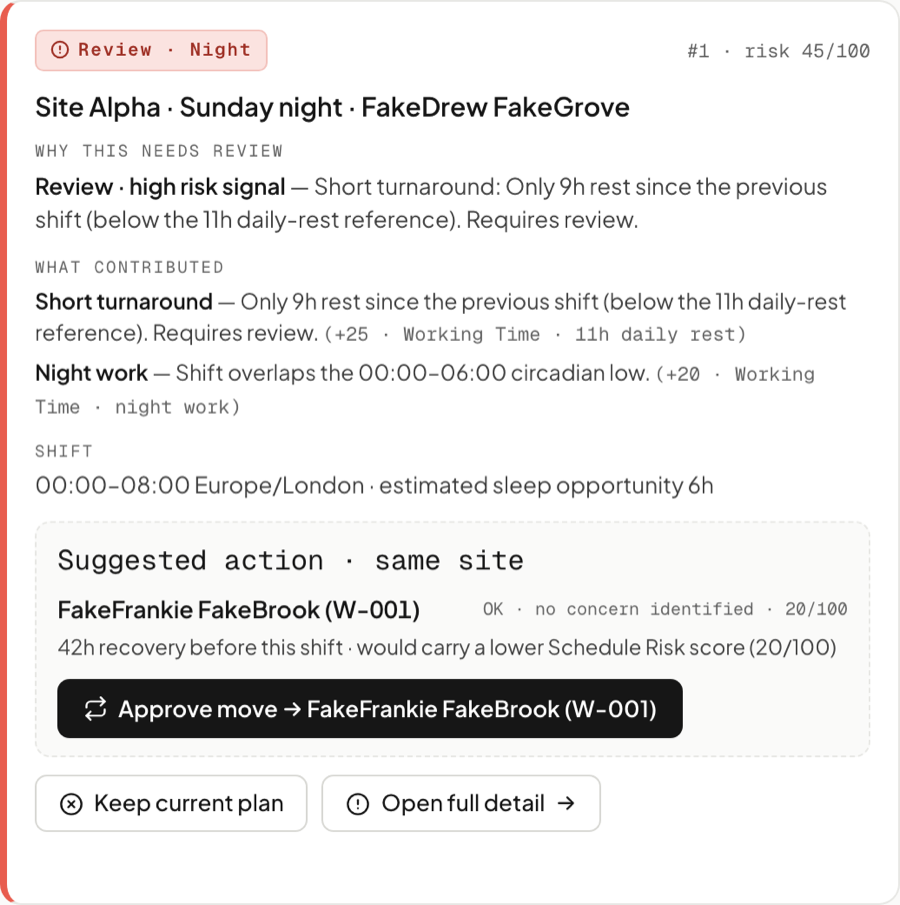
Decide what to change
For each flagged shift, you decide. Move it to a suggested colleague, keep the plan, or note that you’ve changed it elsewhere. RosterWise never changes a roster on its own.
Each decision is kept with your reason, so you can explain it later. Then update the roster in the tool you already use.

Five working patterns.
- Rest between shiftsAgainst the 11-hour daily rest reference
- Night workAny time between midnight and 6am
- Long shiftsAgainst good-practice guidance
- Runs of working daysAgainst good-practice guidance
- Weekly hoursAlongside the 48-hour average reference
Staffing against trading.
Add sales data and see busy and quiet periods next to who was working. Try a staffing change and the roster checks run again. More on the Business Pro plan →
Talk to us about your rosters.
Tell us how you roster today. Or walk through a complete example on a synthetic roster first.